 PicDock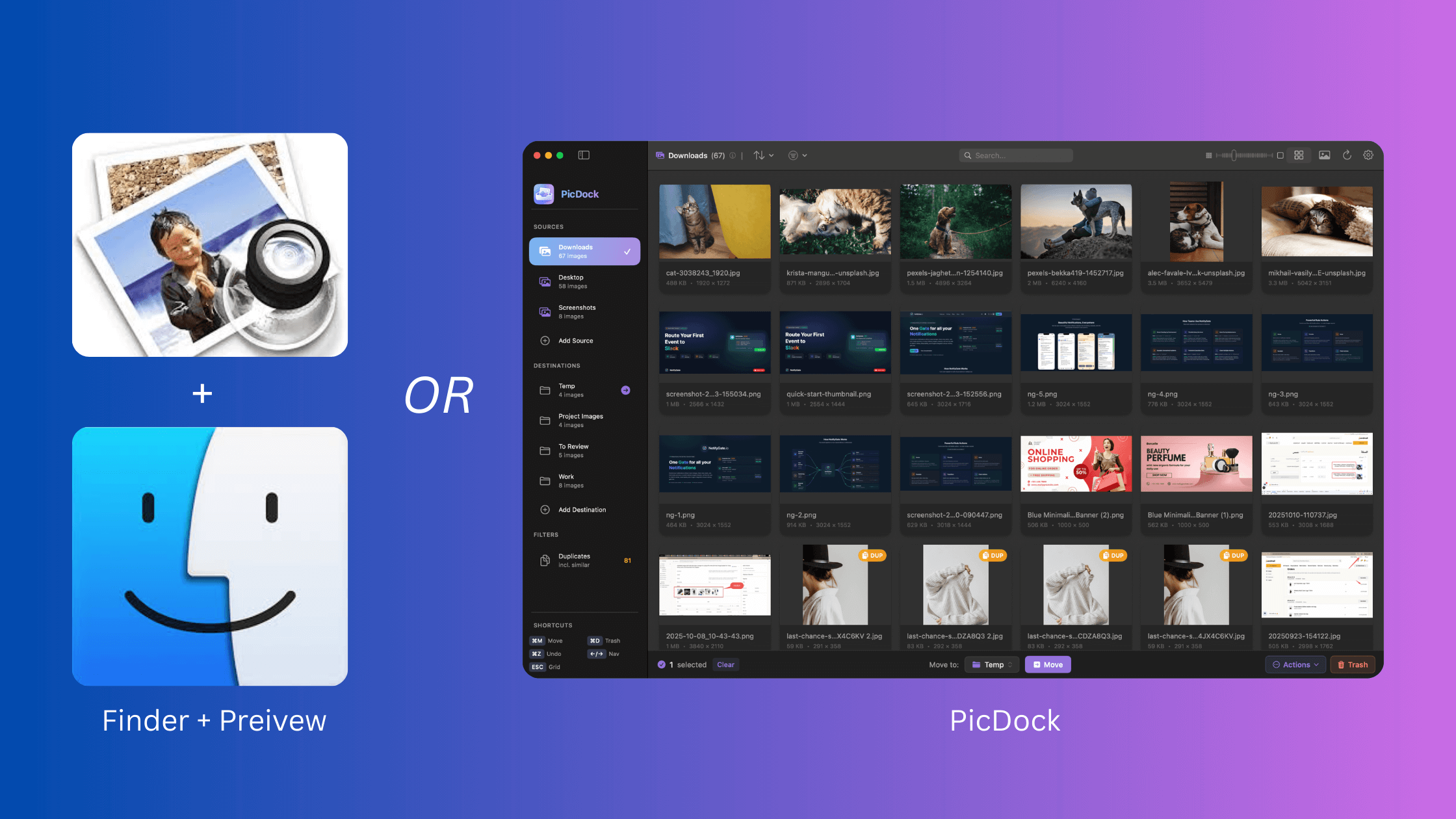
Apple's Preview app is fine for viewing a single image. But when you need to browse through a folder of 500 screenshots, 1,000 design assets, or a few hundred downloaded images, Preview becomes frustratingly slow. You click an image in Finder, hit spacebar for Quick Look, press arrow keys to navigate... and wait. And wait. And sometimes it just stops responding.
If you work with images stored in folders—not in Apple Photos—you need a Preview alternative on Mac that's built for folder browsing, not just single-file viewing. The right image viewer makes the difference between spending five minutes triaging screenshots and spending an hour fighting with laggy interfaces.
This guide covers what makes a great image viewer for Mac, compares different approaches, and shows you folder-first alternatives that handle large collections without breaking a sweat.
Who Needs a Preview Alternative?
You'll benefit from a dedicated folder-based image viewer if you:
Designers and creatives: Manage project assets across nested folders, review client deliverables, organize design exports, and quickly find the right mockup without importing into a library.
Developers: Triage hundreds of bug screenshots, review UI assets for implementation, compare different builds, and keep test images organized in project directories.
Photographers: Browse RAW + JPEG pairs in working folders, compare shots from the same session, organize by project without importing into Photos, and maintain folder-based archives.
Content creators: Sort through screen recordings and thumbnails, organize video assets, manage marketing materials, and quickly export versions for different platforms.
Anyone with cluttered folders: Clean up Downloads that accumulated hundreds of images, organize years of screenshots, finally sort that Desktop full of random files, and maintain sanity when dealing with large image collections.
The common thread? You store images in regular folders and need to see them all quickly without the friction of Finder + Preview or the overhead of importing into Photos.
What "Best Image Viewer for Mac" Actually Means
Not all image viewers are created equal. Here's what matters when you're evaluating a Preview alternative for Mac:
Essential Criteria Checklist
✓ Fast navigation: Instant next/previous image switching with arrow keys or swipe gestures. No lag when jumping between images, even with large files. Smooth scrolling through thumbnails.
✓ Folder + subfolder support: See all images from nested directories in one view. No manually drilling into subfolders. Recursive scanning that automatically includes new files.
✓ Thumbnail grid view: Browse dozens or hundreds of images at a glance. Adjustable thumbnail sizes. Fast scrolling without blank placeholders or loading spinners.
✓ Large preview mode: View full-resolution images with zoom. Compare details without switching apps. Quick toggle between grid and preview views.
✓ Metadata display: See file size, dimensions, format, modification date at a glance. Helpful for identifying which version to keep.
✓ Keyboard shortcuts: Navigate, select, delete, and organize without touching the mouse. Critical for speed when processing hundreds of files.
✓ Sorting and filtering: Sort by date, size, name, or type. Filter to show only specific formats. Search by filename across all subfolders.
✓ Batch operations: Select multiple images and perform actions together. Move, delete, export, or compress in bulk.
✓ Privacy and offline: Works without internet connection. Processes images locally without cloud uploads. Respects macOS sandbox security.
✓ Performance at scale: Handles folders with 1,000+ images without choking. Responsive even when browsing large RAW files or high-resolution exports.
Preview.app fails most of these criteria because it's designed for viewing individual files, not managing folder collections.
6 Options to Consider
Let's compare different approaches to image browsing on Mac, from built-in tools to specialized viewers.
Option 1: Finder + Quick Look
How it works: Navigate in Finder, press Space to preview an image, use arrow keys to browse.
Pros:
- Built into macOS, no installation needed
- Works with any file type
- Fast for viewing a single image
Cons:
- Extremely slow for browsing folders with 100+ images
- No thumbnail grid view
- Must select each file in Finder to preview
- Quick Look often hangs on large files
- No batch operations
- Can't see all subfolder contents at once
Best for: Quickly checking a single file. Not suitable for managing image collections.
Option 2: Preview.app
How it works: Open images directly in Preview, use arrow keys or thumbnails sidebar to navigate.
Pros:
- Pre-installed on every Mac
- Decent editing tools (crop, rotate, annotate)
- Supports most image formats
Cons:
- Painfully slow when opening folders with many images
- Thumbnail sidebar loads sluggishly
- Often freezes or becomes unresponsive
- No recursive subfolder browsing
- Limited sorting and filtering
- Poor performance with large files
- UI feels dated
Best for: Editing a few images. Not designed for browsing large collections.
Option 3: Photos.app
How it works: Import images into Apple Photos library, browse the organized collection.
Pros:
- Sophisticated organization features
- Face and object recognition
- iCloud sync across devices
- Good editing tools
Cons:
- Requires importing images (deal-breaker for folder-based workflows)
- Duplicates your files (library storage + original folders)
- No direct folder management
- Forces you to adopt Photos' organization model
- Can't easily work with project-based folder structures
- Overkill if you just need to browse folders quickly
Best for: Personal photo collections where you want AI organization. Not for folder-based professional workflows.
Option 4: Third-Party Folder Viewers
How it works: Dedicated apps that browse folders without import, offering various features and performance levels.
Pros (varies by app):
- Designed specifically for folder browsing
- Often faster than Preview
- More keyboard shortcuts
- Better batch operations
Cons (varies by app):
- Performance varies widely
- Some struggle with large collections
- Many use outdated UI patterns
- Some require subscriptions
- Feature sets range from minimal to overwhelming
Best for: Users willing to try multiple apps to find one that fits their needs.
Option 5: Specialized DAM (Digital Asset Management) Tools
How it works: Professional asset managers like Lightroom, Capture One, or similar tools.
Pros:
- Powerful cataloging and editing
- Advanced metadata management
- Professional-grade features
- Great for serious photography workflows
Cons:
- Heavy and complex
- Expensive subscriptions
- Steep learning curve
- Overkill for simple folder browsing
- Often require import or catalog creation
- Slow to launch and navigate
Best for: Professional photographers with extensive cataloging needs. Too much for casual folder browsing.
Option 6: PicDock Workflow
How it works: Point PicDock at any folder, see all images (including subfolders) in a fast grid, browse with keyboard shortcuts, and take action (move, delete, export) without friction.
Pros:
- Zero import friction—just select a folder
- Recursive scanning shows all subfolder images in one grid
- Fast browsing optimized for thousands of images (see our performance deep-dive)
- Keyboard-driven workflow (K to move, D to trash, arrows to navigate)
- Built-in batch operations (compress, export, zip)
- Duplicate detection for cleanup
- 100% local processing—no cloud uploads
- Native Mac app (Swift + Metal for performance)
Cons:
- Focused on organization workflow, not advanced editing
- No RAW development features
- macOS only
Best for: Anyone who needs to quickly browse, organize, and process images stored in folders without the overhead of a photo library or DAM tool.
Quick Comparison Table
| Feature | Finder + Quick Look | Preview.app | Photos.app | Third-Party Viewers | DAM Tools | PicDock |
|---|---|---|---|---|---|---|
| Folder browsing | Manual | Slow | Import required | Varies | Import required | Fast |
| Subfolder support | No | No | N/A | Varies | Yes | Yes |
| Thumbnail grid | No | Sidebar only | Yes | Varies | Yes | Yes |
| Performance (1000+ images) | Poor | Poor | Good | Varies | Good | Excellent |
| Keyboard shortcuts | Limited | Basic | Good | Varies | Advanced | Extensive |
| Batch operations | No | Limited | Yes | Varies | Yes | Yes |
| Import required | No | No | Yes | No | Usually | No |
| Privacy (local-only) | Yes | Yes | iCloud sync | Varies | Varies | Yes |
| Learning curve | None | None | Low | Varies | High | Low |
| Price | Free | Free | Free | Varies | $$ | $ |
PicDock's Approach: A Folder-First Image Viewer
PicDock was built to solve the exact problem Preview doesn't address: browsing large collections of images stored in folders.
Here's what makes it different:
Instant Folder Access
No import step. No library to manage. Just point PicDock at a folder (Downloads, a project directory, or your entire Documents folder) and it scans recursively, showing every image from every subfolder in one unified grid.
Optimized for Speed
PicDock uses intelligent thumbnail caching and aggressive memory management to stay fast even with thousands of images. While Preview loads thumbnails one by one and often freezes, PicDock's grid scrolls smoothly and responds instantly. (Read about the engineering behind this: How to Browse Thousands of Images Without Lag.)
Keyboard-Driven Workflow
Process images at the speed of thought:
- Arrow keys: Navigate between images
- K: Move to destination folder (Keep)
- D: Move to trash
- U: Undo last action
- Esc: Return to grid view
- Space: Toggle between grid and detail view
Built-In Power Tools
Common tasks that require multiple apps or tedious manual work:
Duplicate detection: Find exact duplicates (SHA-256 hash) and similar images (perceptual hash) automatically. Essential for cleaning up messy folders. (See our guide: How to Find Duplicate Photos in Folders.)
Batch compression: Select dozens of images and compress them all at once. Perfect for reducing attachment sizes or optimizing web assets.
Format conversion: Convert between formats without leaving the app.
ZIP and share: Select images and create a ZIP archive in one click.
Move to destinations: Set up destination folders (e.g., "Keep," "Client Review," "Archive") and move images with a single keystroke.
Privacy First
All processing happens on your Mac. No cloud uploads, no internet connection required, no tracking. Fully sandboxed according to macOS security requirements.
A 3-Minute Setup Guide
Getting started with PicDock takes minutes, not hours:
Step 1: Add a Source Folder
Launch PicDock and add the folder you want to browse:
- Click "Add Source" or drag a folder into the window
- Choose any folder: Downloads, Desktop, a project directory, or a parent folder containing many subfolders
- Grant folder access (macOS security requirement)
Step 2: Let It Scan Subfolders
PicDock automatically scans all subfolders recursively:
- Initial scan takes seconds for typical folders
- Images appear in the grid as they're discovered
- Thumbnail generation runs in the background without blocking navigation
- Progress indicator shows scan status
Step 3: Browse with Grid and Detail Views
Navigate your images:
- Grid view: See thumbnails of all images at once, scroll through hundreds
- Detail view: Click an image or press Space to see full-resolution preview
- Filmstrip: In detail view, see a thumbnail strip at the bottom for quick navigation
- Use arrow keys to move between images smoothly
Step 4: Sort and Filter
Find what you need quickly:
- Sort by: Date, size, filename, or type
- Filter: Show only specific formats (e.g., only PNGs or JPEGs)
- Search: Find files by name across all subfolders
- View options: Adjust thumbnail size for your preference
Step 5: Take Action
Process images efficiently:
- Select multiple images: Click or drag to select, Cmd+A for all
- Move to destination: Press K to move selected images to a preset destination folder
- Delete: Press D to move to trash (with undo support)
- Batch operations: Compress, export, or ZIP selected images
- Duplicate cleanup: Filter to duplicates, review, and remove safely
That's it. No configuration complexity, no learning curve, just point and browse.
Performance Tips for Huge Folders
Even the best viewer can struggle if you're not strategic about your folder structure. Here are practical tips:
Start with Smaller Sources
If you have a folder with 50,000 images across 200 subfolders, don't point PicDock (or any viewer) at the top level immediately. Instead:
- Start with one subfolder at a time
- Use PicDock to organize each subfolder into cleaner structures
- Gradually work up to larger scopes
Exclude Cache and Temp Folders
Some project directories contain thousands of generated thumbnails or cache files:
- Avoid scanning folders like
node_modules,.cache,build, ordist - Create a dedicated "assets" folder for images you actually need to browse
- Keep working images separate from build artifacts
Keep Consistent Formats
Mixing RAW files (50MB each) with PNGs and JPEGs in the same folder can slow down any viewer:
- Consider separating RAW files into their own folders
- Use PicDock primarily for browsed formats (JPEG, PNG, HEIC, WebP)
- Export RAWs to JPEG for browsing if you need speed
Archive Periodically
Don't let folders accumulate forever:
- Monthly or quarterly, move old projects to archive folders
- Keep your active "working" folders lean (under 2,000 images)
- Use external drives for archival storage
Use Multiple Source Folders
Rather than one giant folder, organize into logical sources:
- "Active Projects" (current work, browsed frequently)
- "Client Deliverables" (organized by client)
- "Stock Assets" (reusable design elements)
- "Screenshots Triage" (temporary holding area)
PicDock lets you add multiple sources and switch between them instantly, making this organization pattern effortless.
Frequently Asked Questions
Is Preview enough for most people?
Preview is sufficient if you only view a few images occasionally. But if you regularly work with folders containing dozens or hundreds of images, you'll waste significant time fighting Preview's sluggish performance. A dedicated folder viewer pays for itself in saved time and reduced frustration.
Do I have to import images into a library like Photos?
No. PicDock works directly with your folders. You manage your files in Finder's folder structure, and PicDock browses them in place. No duplication, no import step, no library database.
Can I browse images from subfolders without drilling into each one?
Yes. PicDock's recursive scanning shows all images from all subfolders in a single unified grid. You can finally see your entire project's images at once, regardless of how they're nested in subdirectories.
Does it work offline? What about privacy?
PicDock processes everything locally on your Mac. No internet connection required, no cloud uploads, no external servers. Your images stay on your disk. The app is fully sandboxed according to macOS security requirements, so it can only access folders you explicitly grant permission to.
Can it handle all image formats (PNG, JPG, HEIC, WebP)?
Yes. PicDock supports all common formats: JPEG, PNG, HEIC, HEIF, TIFF, WebP, GIF, and BMP. This covers photos from iPhones (HEIC), screenshots (PNG), downloads (JPEG/WebP), and design exports.
Is there a Windows-like photo viewer experience on Mac?
Many users coming from Windows miss the simplicity of the old Windows Photo Viewer. PicDock offers a similar experience: fast folder browsing with arrow key navigation, no library management, and instant responsiveness. It's the closest you'll get to that streamlined folder-first workflow on macOS.
What's the fastest way to triage hundreds of screenshots?
Use PicDock's destination folders workflow:
- Add your Screenshots folder as a source
- Set up destination folders: "Keep," "Archive," "Trash"
- Browse in grid or detail view
- Press K to move keepers, D to trash unwanted ones
- Arrow keys to navigate, no mouse needed
With keyboard shortcuts, you can triage 100 screenshots in minutes instead of the hour it would take with Finder + Preview.
How does it compare to Lightroom or other DAM tools?
PicDock is not a replacement for professional DAM tools. It doesn't offer RAW development, advanced metadata editing, or catalog features. Instead, it focuses on one thing: fast, friction-free browsing and organization of images in folders. If you need a lightweight tool for everyday image management, PicDock is perfect. If you need professional cataloging and RAW processing, use Lightroom—but consider PicDock for quick browsing and organization tasks where Lightroom feels too heavy.
Finding Your Perfect Preview Alternative
The "best image viewer for Mac" depends entirely on your workflow. If you store images in Apple Photos and rarely touch folders, Photos.app is fine. If you're a professional photographer managing a massive catalog, invest in Lightroom or Capture One.
But if you're like most people—with images scattered across Downloads, Desktop, project folders, and nested directories—you need a folder-first image viewer that's fast, simple, and respects your existing organization.
PicDock is built for exactly this use case. It's the Preview alternative that actually handles folders well.
Why Folder-Based Workflows Matter
We explored this in depth in Why We Built PicDock: the friction between macOS Finder and Preview creates real productivity problems. Opening a folder, selecting images, launching Preview, waiting for thumbnails to load, and switching between apps wastes cumulative hours every week.
A dedicated folder viewer removes that friction. You browse, you decide, you act—all in one interface optimized for speed.
Get Started
If you're tired of fighting with Preview and Quick Look, or if you're drowning in Downloads and Screenshots folders, give PicDock a try.
Key features:
- Browse folders and subfolders in one unified grid
- Optimized for thousands of images without lag
- Keyboard-driven workflow for fast processing
- Built-in batch compression, export, and ZIP
- Duplicate detection and cleanup
- Move files to destinations with one keystroke
- 100% local processing—your images never leave your Mac
Download PicDock on the App Store →
Related Searches and Alternatives
Looking for more specific solutions? These related queries might help:
- "best image viewer for Mac" — PicDock excels at folder-based workflows with performance focus
- "preview alternative Mac" — PicDock offers the fast, keyboard-driven browsing Preview lacks
- "fast photo viewer Mac" — Speed is PicDock's core strength, handling thousands of images smoothly
- "folder image viewer Mac" — PicDock's entire design centers on folder-first organization
- "Mac screenshot organizer" — Perfect for triaging hundreds of screenshots with destination folders
- "duplicate photo finder Mac folders" — Built-in duplicate detection (read our guide: Find Duplicate Photos in Folders)
- "batch image compression Mac" — Select and compress multiple images without external tools
Related reading:
- How to Browse Thousands of Images Without Lag — The engineering behind fast image browsing
- Why We Built PicDock — The Finder + Preview friction that inspired PicDock
- How to Find Duplicate Photos in Folders on Mac — Complete duplicate cleanup workflow
- Exact vs Near-Duplicate Images — Understanding different types of duplicates